Android - Creating a new project

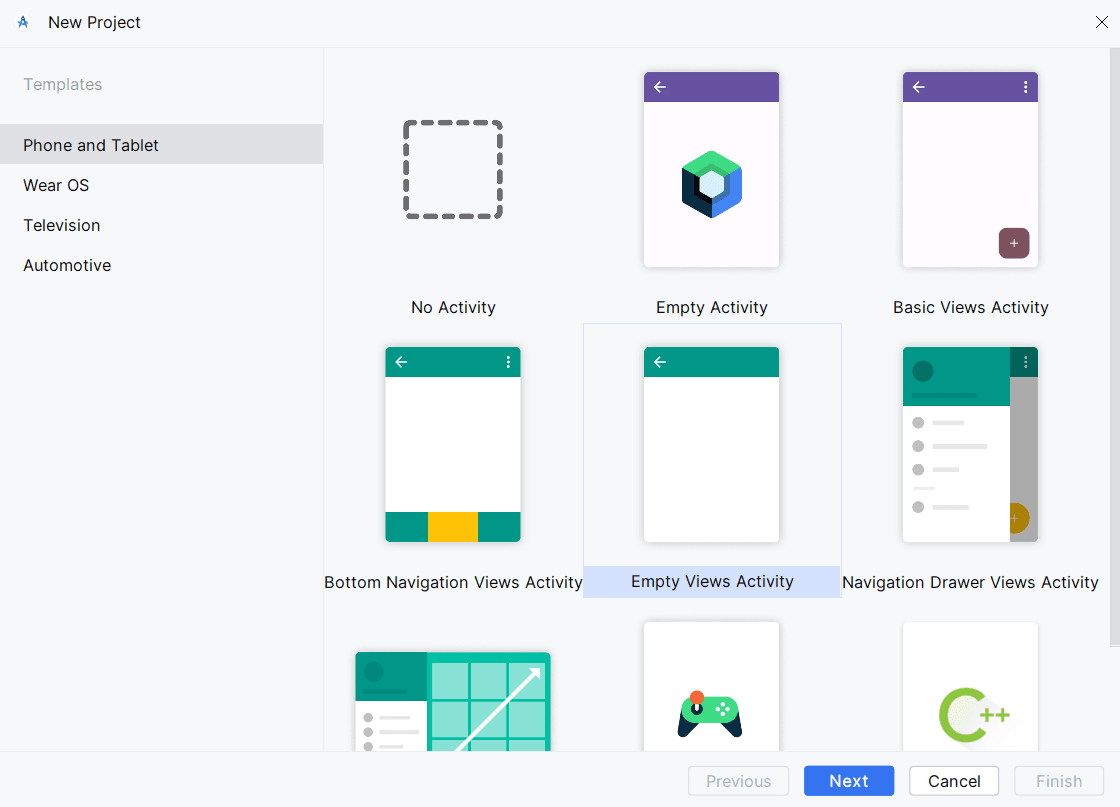
To start creating applications for Android, we first need to create a new project.
There will be a button available at the top of the starting page of Android Studio named "New Project".

Creating a new project in Android Studio may be confusing for some people because of the multiple options given to us at the start.

To keep things simple, we can start with the "Empty Views Activity" option

Do note that other versions of Android Studio may not include this option.
For that scenario, we can simply pick the "No Activity" option.

After clicking next, we can then edit a few details of the project such as:
The name

The package name

The save location of the project

The programming language the project will use

The minimum Android version the project (or the application) support

And the build configuration language of the project.

For now, we are going to be using these settings below:

Upon clicking the "Finish" button, you will see this window pop up.

Do note that you will need to let the IDE finish the Gradle project sync indicated near the top,

and at the bottom of the window.

After the Gradle has finished syncing, this will be the final look of the IDE.

Do note that if you chose the "No Activity" option, you will not have the default "activity_main.xml" and "MainActivity.java" files at the start.

To add a new activity, right-click on the "app" folder on the left and choose the "New > Activity > Empty Views Activity" option.

You can choose to either change or ignore the settings on the pop-up window.

After clicking the "Finish" button, make sure to edit the "AndroidManifest.xml" located at the folders at the left at "app > manifests > AndroidManifest.xml" and modify the "<activity>" tag for the Activity you just created just like this example below.

This will serve as the default activity that will open as soon as your application starts.